













If you face some problems with Apple music, books, or apps or have purchased something accidentally — you can always get a refund. Some cases will be qualified for a refund, and others will certainly not.
Will your case be eligible for a refund or not, — it’s decided by Apple, based on your reasoning, given details, a period of usage, etc.
Requesting a refund is not a way to get free trials or short-term usage of a particular app because you’ll need to present a valid reason for getting your money back.
There are cases, though, when you just have to know how to get a refund on iTunes or App Store. It is especially relevant for parents whose kids have a cute little habit of buying everything they meet on the App store without parents’ permission, or buying add-ons in the game, starting from a $0.99 pack to $99.99 bundles.
You can use any device with access to the browser to request a refund. In this article, we’re going to lead you through the whole process to make it easier for you.
What happens when you report a problem?
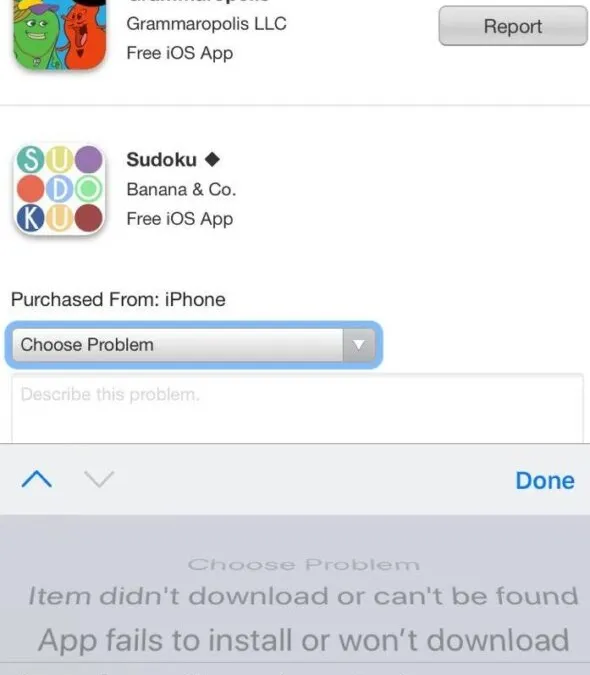
When you report a problem with an app, you get redirected to the page where you should type a reason for your request, choosing the one from the given options. It’s done to discover what’s the reason for your inquiry and if it can be regarded as constructive enough to approve the refund.
Your answer here will determine the next steps: you may receive a refund right away or be redirected to Apple’s official website, where you’ll talk to support.
Reasons that can be specified for receiving a refund are the following:
- Item cannot be found
- App failed to install
- App doesn’t work as expected
How to get a refund on iTunes using your iPhone/iPad/computer?
You can request a refund using either your laptop or iPhone/Ipad.
Here are some ways to do that.
- From the report-a-problem page:
- Open reportaproblem.apple.com ;
- Enter your Apple ID and password;
- Click on the “Report a problem” button next to the item you want to get a refund for;
- Follow the instructions to choose the reason for your inquiry and submit it.
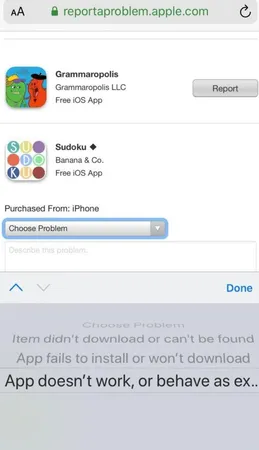
How to get a refund using the web
You can request a refund using any browser. Go to the same report page and follow the prompt to submit.
There is also another way how to get a refund from the App store if you’ve saved your receipt for the purchase. Here is a quick guide.
Locate the receipt that you’ve received from Apple in your mailbox.
In each receipt email, you’ll have a list of items you’ve purchased with a “report a problem” button below. Tap it, enter your Apple ID and password, and proceed following the instructions. Specify the problem that you’re experiencing with a purchased item and submit your request.
Note that iTunes email receipts typically arrive within 48 hours after the purchase is made (and your card is charged).
How to get a refund using iTunes on Mac or Windows
This method cannot be used for mobile devices.
- Open iTunes on your Mac or Windows;
- Go to Account;
- Type your Apple ID and password;
- Go to Purchase History;
- Tap “See All”;
- Click “More” next to the app for which you want to get a refund.
From there, you’ll be able to report a problem, taking the same steps as with the methods described above. Specify the reason for your refund and submit your request.
How long does it take to get a refund from the Apple Store?
If your refund is approved, Apple will use the same payment method that you did while purchasing the item.
Store Credit: up to 48 hours.
Mobile phone billing: up to 60 days.
Ways to prevent unwanted purchases on iTunes with uMobix
Sometimes it’s easier and cheaper to prevent unwanted purchases from your kid’s phones than spend many hours coming up with a reason for a refund or waiting for another Apple’s decision. In some cases, the whole process may take up to 60 days. Imagine going through this each time your child purchases expensive toys from the Apple Store.
For modern parents, there are many new tools on the market that allow controlling their kids’ purchases in an easy and cost-effective way.
A parental control app is one such tool. uMobix gives you access to your kid’s phone, making it clear which purchases took place and which one is still soaking up your money (for instance, through in-app purchases).
A comprehensive dashboard for parents reflects a detailed purchase history. You can track every new app your kid downloads.
Parental control options
uMobix offers a basic set of features to set control over your kid’s Internet activities.
- Keep tabs on phone calls
- View text messages
- Track SMS/MMS
- Record screenshots
- Scrutinize website history
- Track GPS-location
- Monitor app purchases
With this tool in hand, you can be sure you’ll know what app has been purchased before it starts clawing its way into your wallet.
uMobix comes with a bunch of analytical features that help parents not only monitor spending but to keep tabs on their kid’s app activity.
How do I stop my child from uncontrollable purchases on Apple Store
Discovered a series of withdrawals from your credit card, and they look way too familiar?
First of all, there is always a point in going for an honest talk. Take your child for a walk or ask to stay home in the evening, so you two can have that chat.
Drop a hint that their uncontrollable spendings hit your wallet a bit, and set some rules as to the amount of money they can spend while playing games or using apps. If this doesn’t work, warn your kiddo you’re going to request a refund for recent purchases. Make it clear you can do it any way you want, so it’s better to take the “high road” and get a grip on their Internet activity and the consequences it brings to the family budget.
FAQ
After you submit your report, you’ll hear from Apple within the next 30 days. You may be reached by a representative who will ask for additional information to verify your request. If Apple decides to perform a refund, the money will appear within 2 weeks on your credit card.
However, there are some cases that aren’t eligible for a refund. Try to provide as many details as possible so the representative can understand the topic deeply and pass on detailed information. That will double your chances of a successful operation.
You can check the status of your refund on your account: if your balance is not updating, then it might need a bit more time.
Also, you can always ask Apple Support about what happened to your refund if you can’t see any progress.
If you want to reach a live person, you can trip up the bot or call Apple Technical Support directly at 1-800-275-2273.
The best way is to pass on your request online on the official website.
You can also call (800) APL–CARE (800–275–2273) if you’re in the US.
If you want to view a complete list of your purchases in chronological order, do the following.
- Go to Settings > iTunes & AppStore >> View Apple ID.
- Scroll down to “Purchase History” and tap it.
Here you can find all the purchases that have been made, along with the purchase date and the billing date.

